Essential information to get started with PhotoCulling. Read these pages in order before using the application for the first time.
1 - Important Information
Before You Start
Please review these important points before using PhotoCulling for the first time.
System Requirements
- macOS Tahoe or later
- Apple Silicon (M-series) or Intel Mac
- Sufficient disk space for your photo library
Key Concepts
What is Photo Culling?
Photo culling is the process of reviewing images from a photo shoot and selecting only the best ones for professional editing. Your typical workflow is:
- Copy images from your camera to a temporary catalog on your Mac
- Review each photo and mark the ones worth keeping
- Rate the marked photos based on quality and editing priority
- Copy only the marked and rated photos to a final catalog
- Import the final catalog into your photo editing application
This streamlined process helps you:
- Quickly identify and select high-quality shots
- Eliminate out-of-focus or blurry photos
- Remove duplicates and similar frames from burst mode
- Prepare only your best images for professional editing
- Maintain organization before the editing phase
Before You Start Culling
Organize Your Source: Copy images from your camera to a temporary catalog on your Mac before starting the culling process.
Understand Your Criteria: Know what makes a photo worth keeping for you. What technical and compositional standards will you use?
Have Space Ready: Ensure you have sufficient disk space for:
- The temporary catalog from your camera
- The final catalog with marked and rated photos
- Your photo editing application workspace
Prepare for Editing: Have your photo editing application ready to import the final catalog after culling is complete.
Use External Storage Wisely: If working with photos on external drives, ensure they remain connected throughout your culling session.
Privacy & Security
- PhotoCulling is a local application only—all your photos stay on your computer
- No data is uploaded to cloud services or third-party servers
- Your photo library is completely private and under your control
- The application is sandboxed for additional security
Troubleshooting
If you encounter any issues:
- Ensure macOS Tahoe or later is installed
- Restart PhotoCulling if the interface becomes unresponsive
- Check that photos are stored in a supported format (only Sony A1 mkI and mkII ARW files)
- Verify you have read/write permissions for photo directories
For detailed help, visit the Getting Started guide or check the latest changelog.
2 - Getting Started Guide
Note: Please read the Important Information page first if you haven’t already.
Getting Started with PhotoCulling
What is a Photo Culling Application?
A photo culling application is specialized software designed to help photographers efficiently review, organize, and select the best images from a photo shoot. The typical workflow is:
- Copy from Camera: Images are copied from your camera to a temporary catalog on your Mac
- Review & Mark: You review each image and mark the keepers you want to keep
- Rate Images: Rate the marked photos based on quality and editing priority
- Copy Keepers: Only the marked and rated photos are copied to a final catalog for editing
- Edit: Use a dedicated photo editing application to edit the selected images
PhotoCulling makes this process fast and intuitive, allowing you to review hundreds of photos in a reasonable timeframe and prepare only your best shots for professional editing.
Launching PhotoCulling
After installation, PhotoCulling appears in your Applications folder. Simply double-click to launch the application.
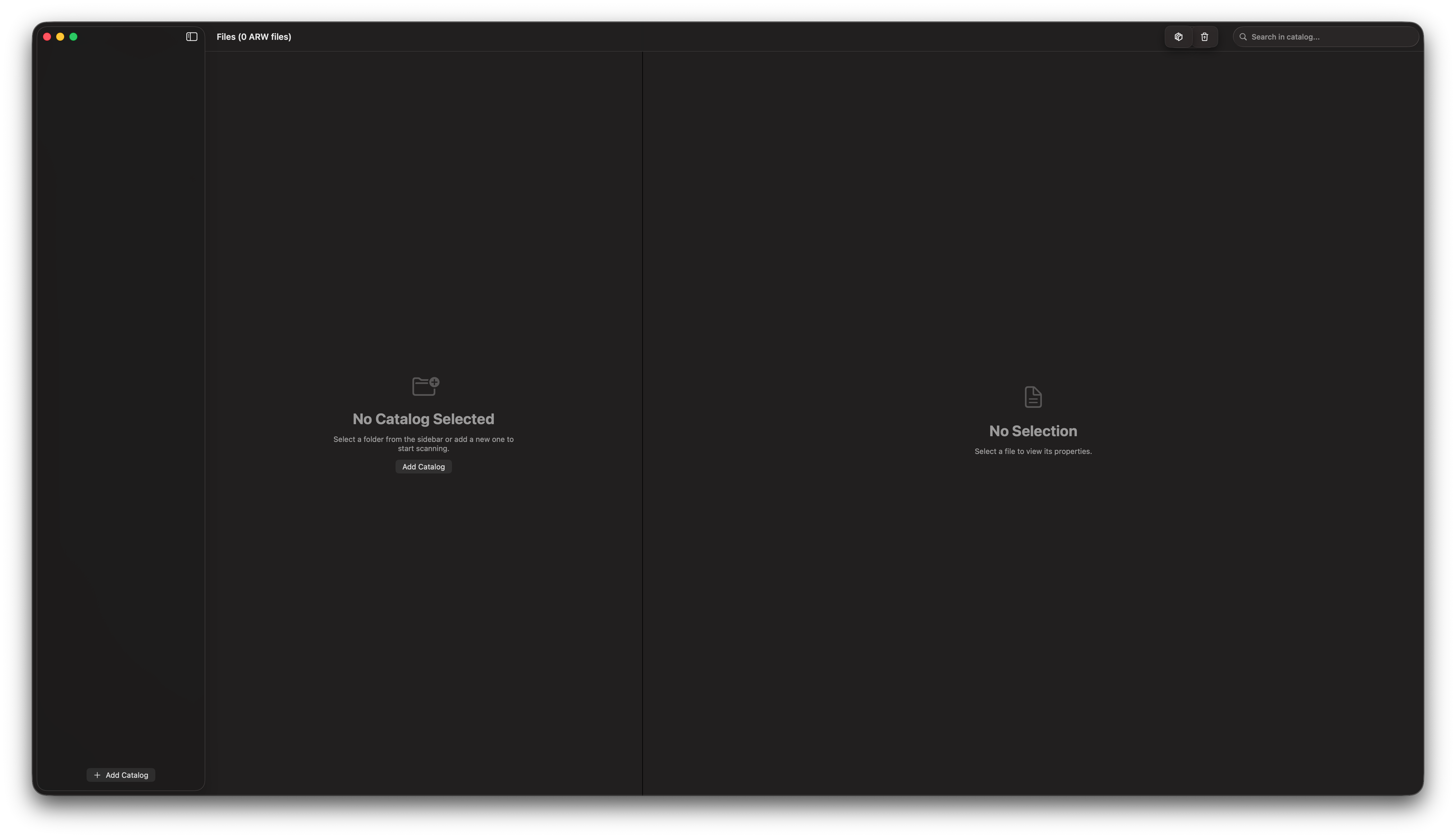
Once opened, the main interface presents you with options to browse and select a folder containing your photos.
Opening Your Photo Folder
PhotoCulling works with any folder containing supported image formats:
- Sony RAW formats (Sony A1 mkI & mkII ARW files)
Use the folder selection dialog to navigate to your photo directory. PhotoCulling will scan and display all compatible images.
Automatic JPG Generation
PhotoCulling can create JPG files (approximately 1 MB each) from all RAW files in your temporary catalog. These JPGs are stored in a designated temporary location and can be viewed using the standard macOS Photo Viewer application, providing quick preview access without requiring a dedicated RAW viewer. This is particularly useful for fast browsing or sharing previews with colleagues during the culling process.
The Interface
Once you’ve selected a folder, PhotoCulling displays your photo library in a clear, organized layout:
- Main viewing area shows your current photo and thumbnail grid
- Navigation controls allow you to move through your library
- Marking tools let you flag images for keeping or culling
- Zoom controls help you inspect details
Next Steps
Continue to the Culling Photos guide to learn how to mark, review, and finalize your culled collection.
3 - Culling Photos
How to Cull Your Photos
This guide walks you through the process of culling photos in PhotoCulling, from scanning your library to finalizing your selections.
Step 1: Select Your Temporary Catalog
After copying images from your camera to a temporary catalog on your Mac, select that folder in PhotoCulling. The application scans all images and generates previews for quick review. This process reads your photo metadata and creates a visual index of all images in the selected directory.
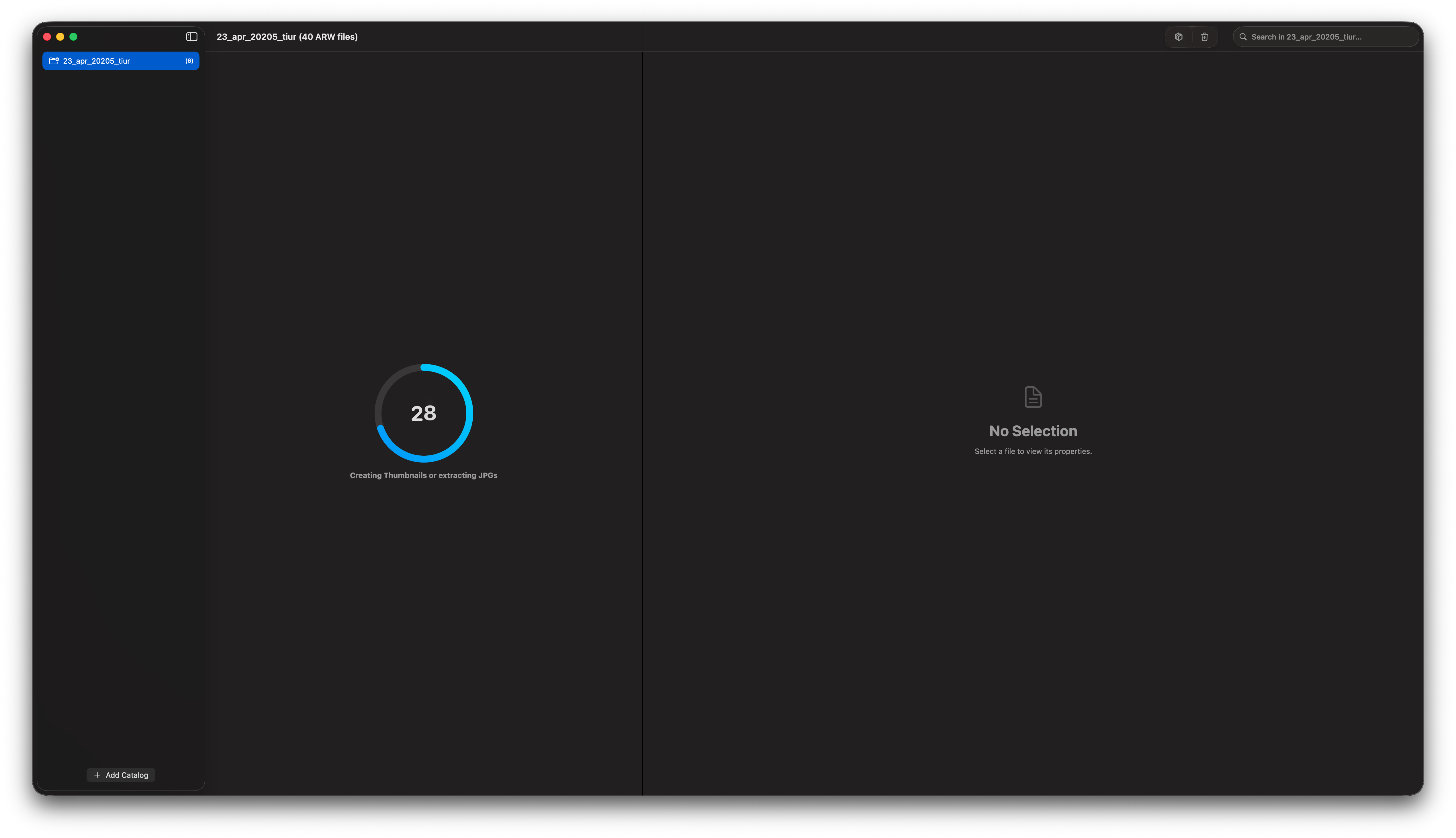
During scanning, you can monitor progress as the application indexes your images. Depending on the size of your library, this may take a few moments.
Step 2: Post-Scan Display
Once scanning completes, PhotoCulling displays your full photo library with a thumbnail grid and preview controls ready for culling.
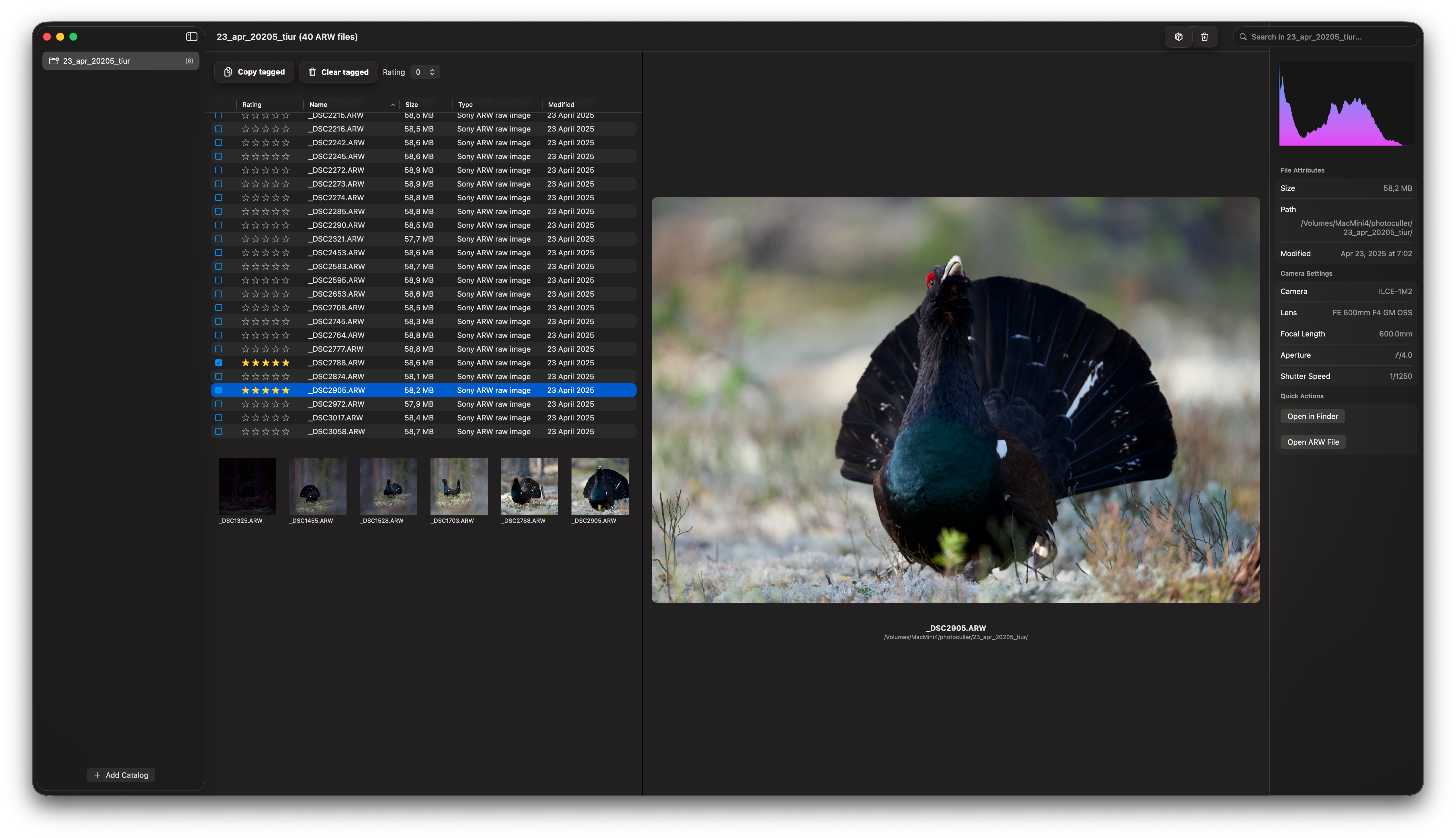
At this point, you can:
- Navigate through images using arrow keys or click navigation
- View the current image in the main preview area
- Mark images with your culling decisions
- Use filters to organize your view
Step 3: Review and Mark Images
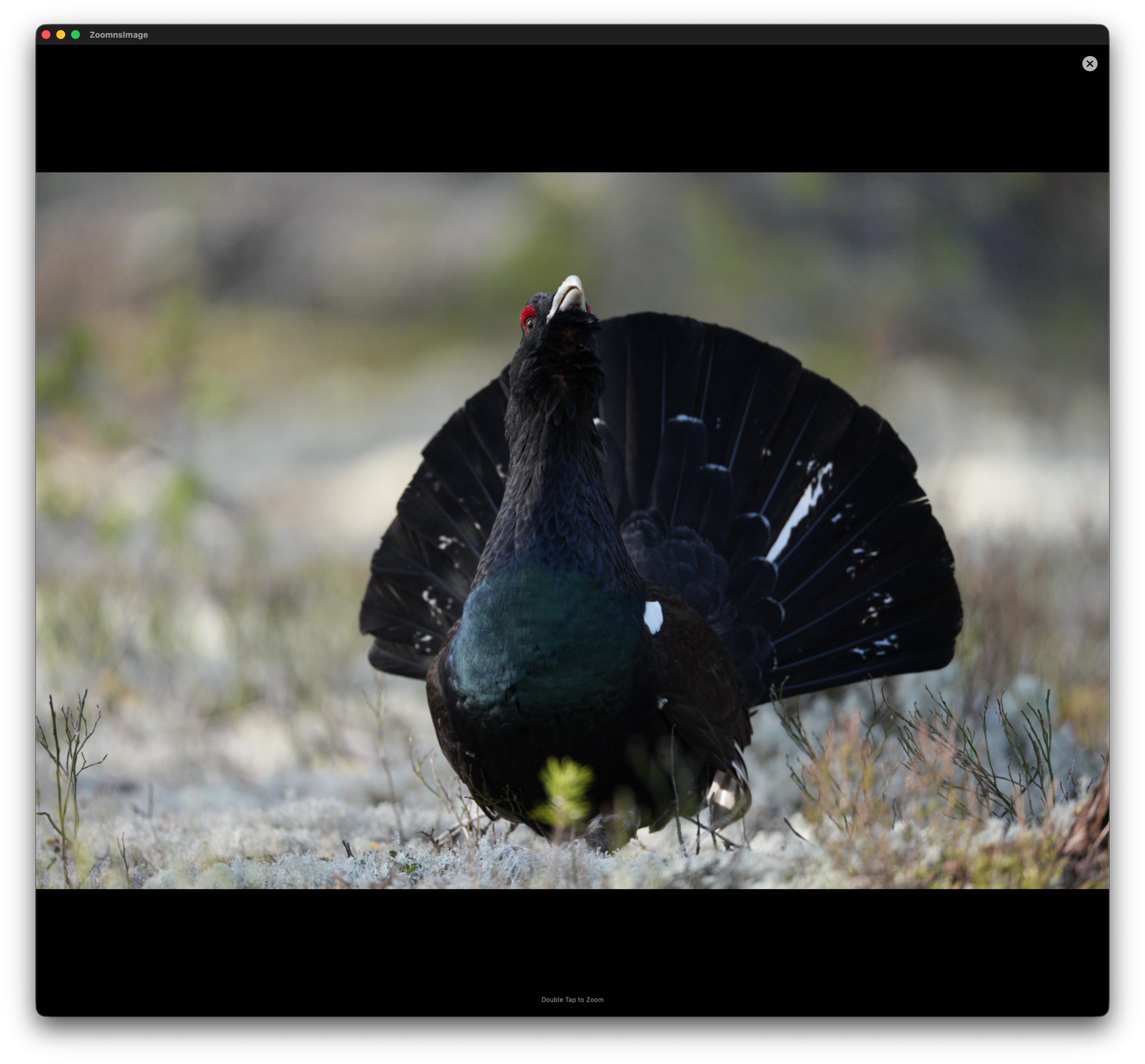
Examine each photo carefully. You can view images at normal size first to get a quick sense of quality.
Persistent Marking and Session Recovery
PhotoCulling automatically saves your marking decisions as you work, allowing you to pause and resume your culling session at any time. Your marks, ratings, and review status are saved to disk, so if you need to continue later, simply reopen the same folder and your progress will be restored.
Thumbnail Performance
Thumbnails are generated and kept in memory during your session for fast navigation. PhotoCulling also maintains a disk cache of thumbnails for previously reviewed catalogs, enabling instant loading when you return to the same folder in the future.
Marking and Rating Photos
For each image, decide whether it’s worth keeping:
- Mark as Keep: Select high-quality photos that you want to retain for editing
- Leave Unmarked: Photos you don’t want to include in your final catalog
- Rate Quality: Assign star ratings or priority levels to marked photos based on editing priority
- Review Later: Mark questionable photos for later review
Keyboard Shortcuts
Use these keyboard shortcuts for efficient culling (the Shortcuts may change):
| Action | Shortcut |
|---|---|
| Mark as Keep | T or By rating |
| Unmark as Mark | T if selected |
| Move to Next | ↓ |
| Move to Previous | ↑ |
| Zoom In | double click on row or photo |
| Zoom Out | double click on row or photo |
Step 4: Inspect Details
For critical decisions, zoom in to examine fine details like focus, expressions, or technical quality.
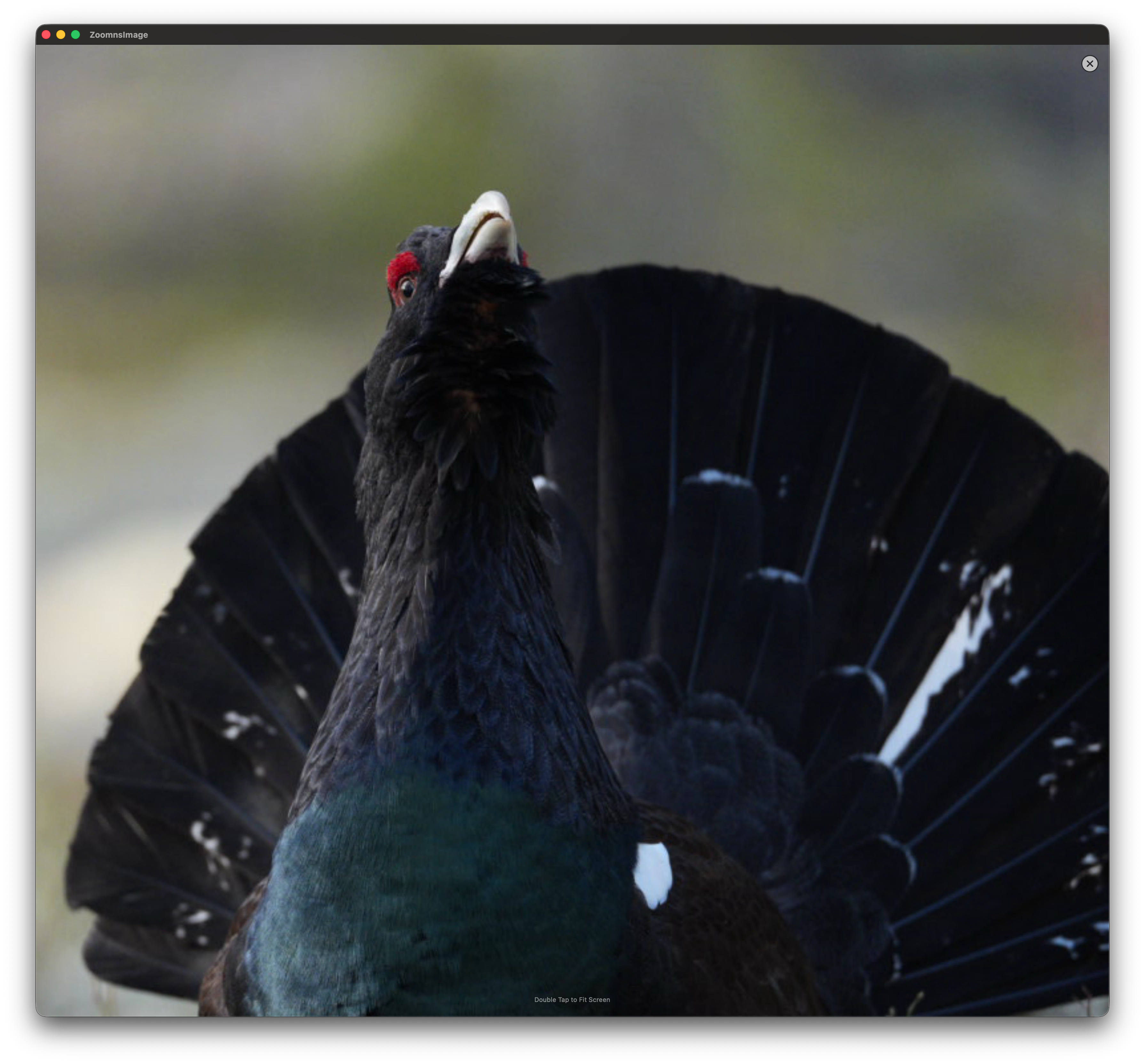
Zoomed view allows you to:
- Check if eyes are sharp and in focus
- Verify composition details
- Look for artifacts or blemishes
- Confirm technical quality before keeping
This is especially useful when deciding between very similar shots from burst mode.
Step 5: Review Your Selections
After marking and rating all photos, take time to review your decisions:
- Filter by Status: View only photos marked as “Keep” or “Review Later”
- Verify Ratings: Review the star ratings and priority levels you assigned
- Double-Check: Re-examine borderline cases
- Adjust Marks: Update any incorrectly marked or rated photos
Step 6: Copy Marked Photos to Final Catalog
Once satisfied with your selections:
- Copy Marked Photos: PhotoCulling copies only the marked and rated photos to your final catalog
- Organize for Editing: The final catalog is now ready to import into your photo editing application
- Keep Original: Your original temporary catalog remains untouched, preserving all images from your shoot
Note: Only marked and rated photos are copied to the final catalog. Unmarked photos remain in the temporary catalog but are not copied to your editing workflow.
Pro Tips for Efficient Culling
Work in Sessions: Cull in focused sessions rather than all at once. You’ll make better decisions when fresh.
Use Consistent Criteria: Decide on your standards (sharpness, composition, exposure) before starting.
Compare Burst Shots: Use the grid view to compare similar shots side-by-side, selecting the best from each burst.
Rate as You Go: Assign ratings to marked photos based on editing priority—5 stars for must-edits, 3 stars for secondary choices.
Workflow Ready: Once copied to your final catalog, immediately import into your photo editing application to maintain workflow momentum.
Trust Your Instincts: If you have doubts about a photo, mark it for review rather than keeping questionable shots.
Check Metadata: PhotoCulling can show image metadata (ISO, aperture, shutter speed) to help inform your decisions.
Sort by Date: Group photos by shooting date to maintain context during culling.
What’s Next?
Once you’ve culled your photos, you can:
- Continue with post-processing in your preferred editing software
- Organize keepers into collections or albums
- Create backup archives of your final selection
- Share your best work
Congratulations on completing your cull! You now have a curated collection of your best photos ready for the next steps in your photography workflow.
4 - Copying Photos
Copying Photos with PhotoCulling
PhotoCulling supports two distinct copy workflows to fit your photo culling process:
- Initial Copy: Copy your photos from your camera to a temporary catalog
- Final Copy: Copy only your selected and rated photos to your final destination
Understanding both workflows is essential for an efficient culling workflow.
Copy All Tagged Photos
The first workflow copies all photos that have been tagged during your culling process. This is useful when you want to copy a broad selection of marked images to your destination.
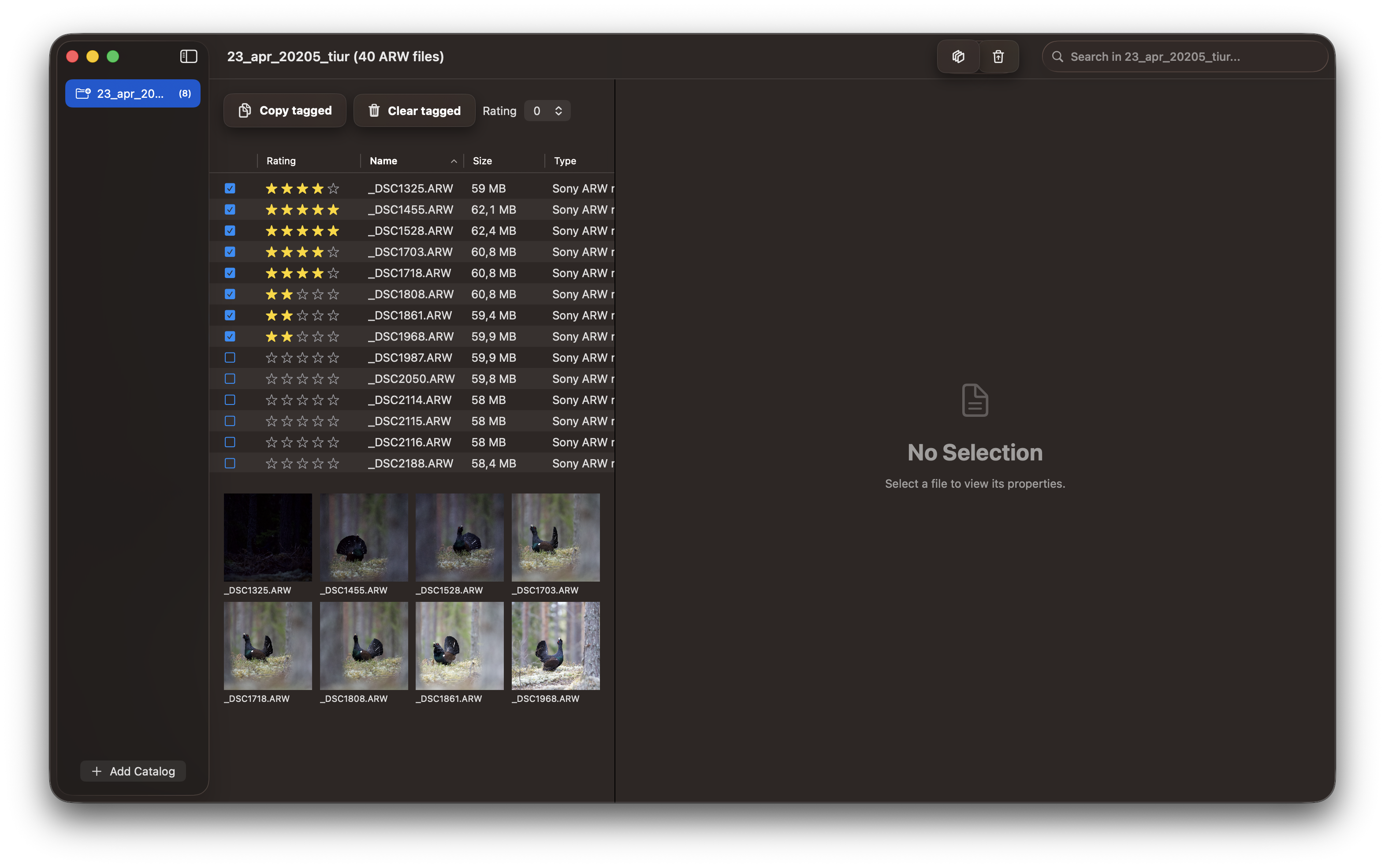
Step 1: Tag Your Photos
As you review your images in PhotoCulling, tag all the photos you want to include in your copy operation.
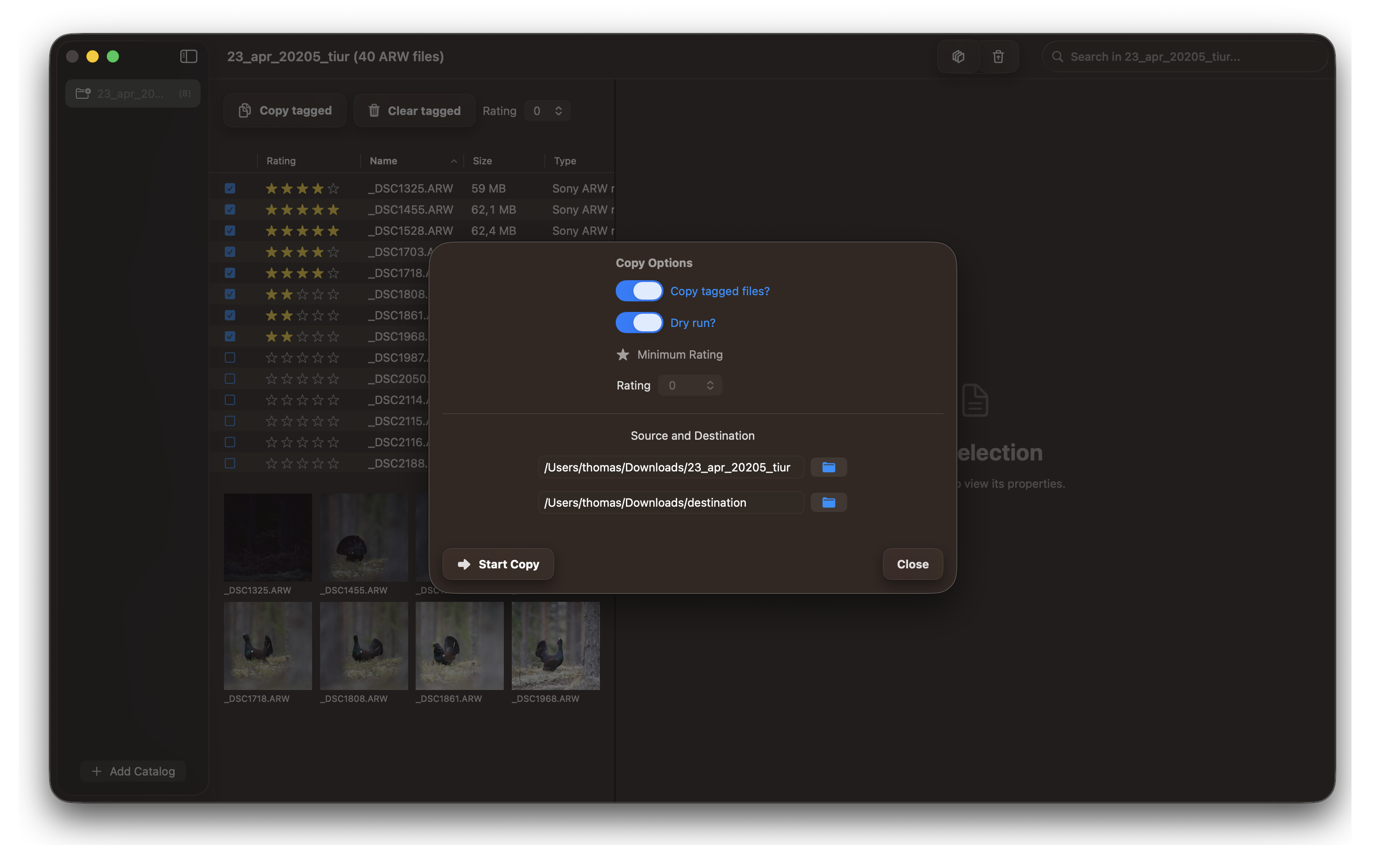
Step 2: Select Tagged Photos for Copy
Use PhotoCulling’s filter to view and select all tagged photos, preparing them for the copy operation.
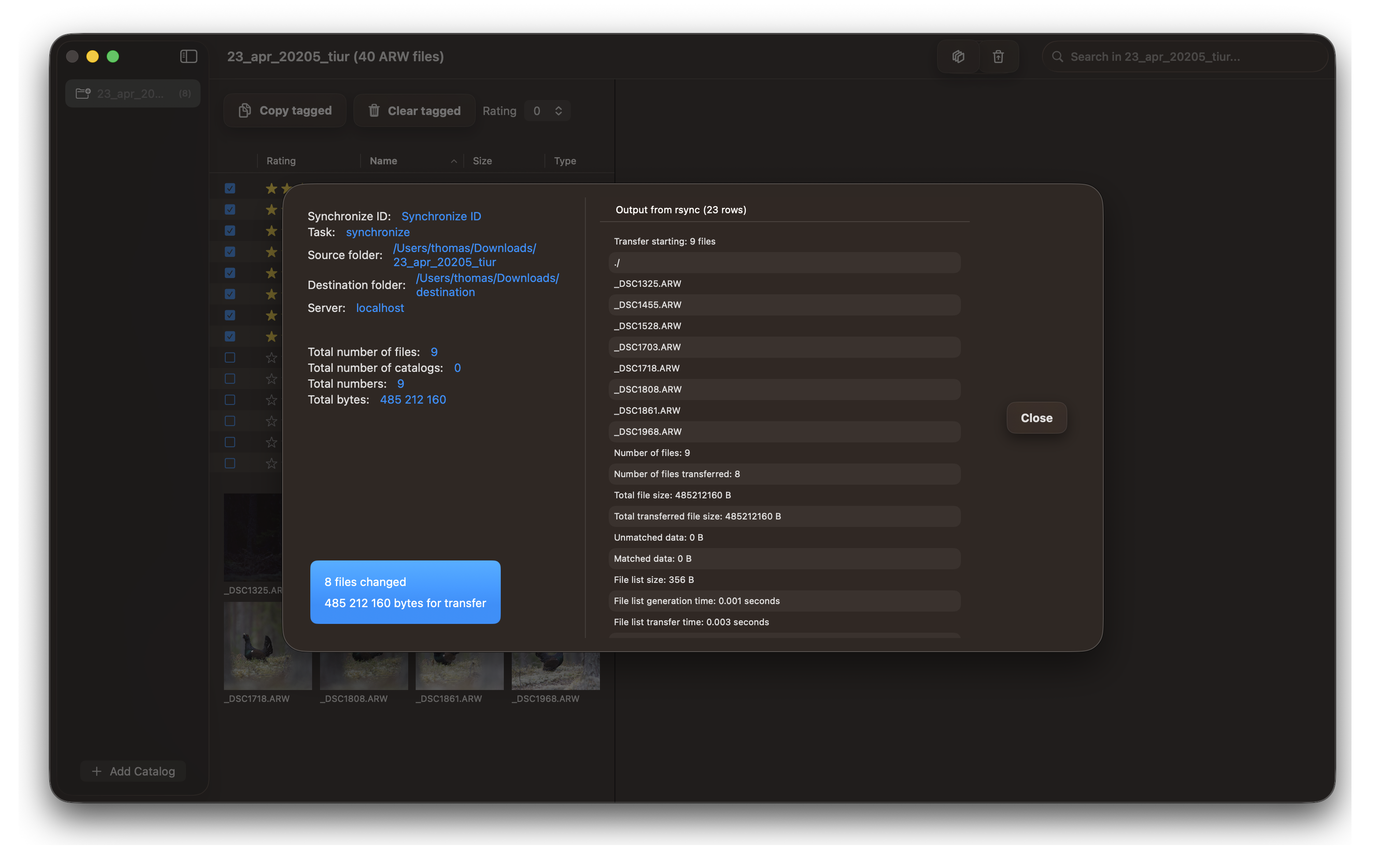
Step 3: Copy Tagged Photos to Destination
Execute the copy operation to transfer all tagged photos to your destination folder.
Copy Based on Rating
After rating your photos, use this workflow to copy only the images that meet your rating threshold. This is ideal for copying only your best-rated selections to your final destination.
Step 1: Rate Your Photos
Review and rate your images in PhotoCulling, assigning ratings to indicate quality and value of each photo.
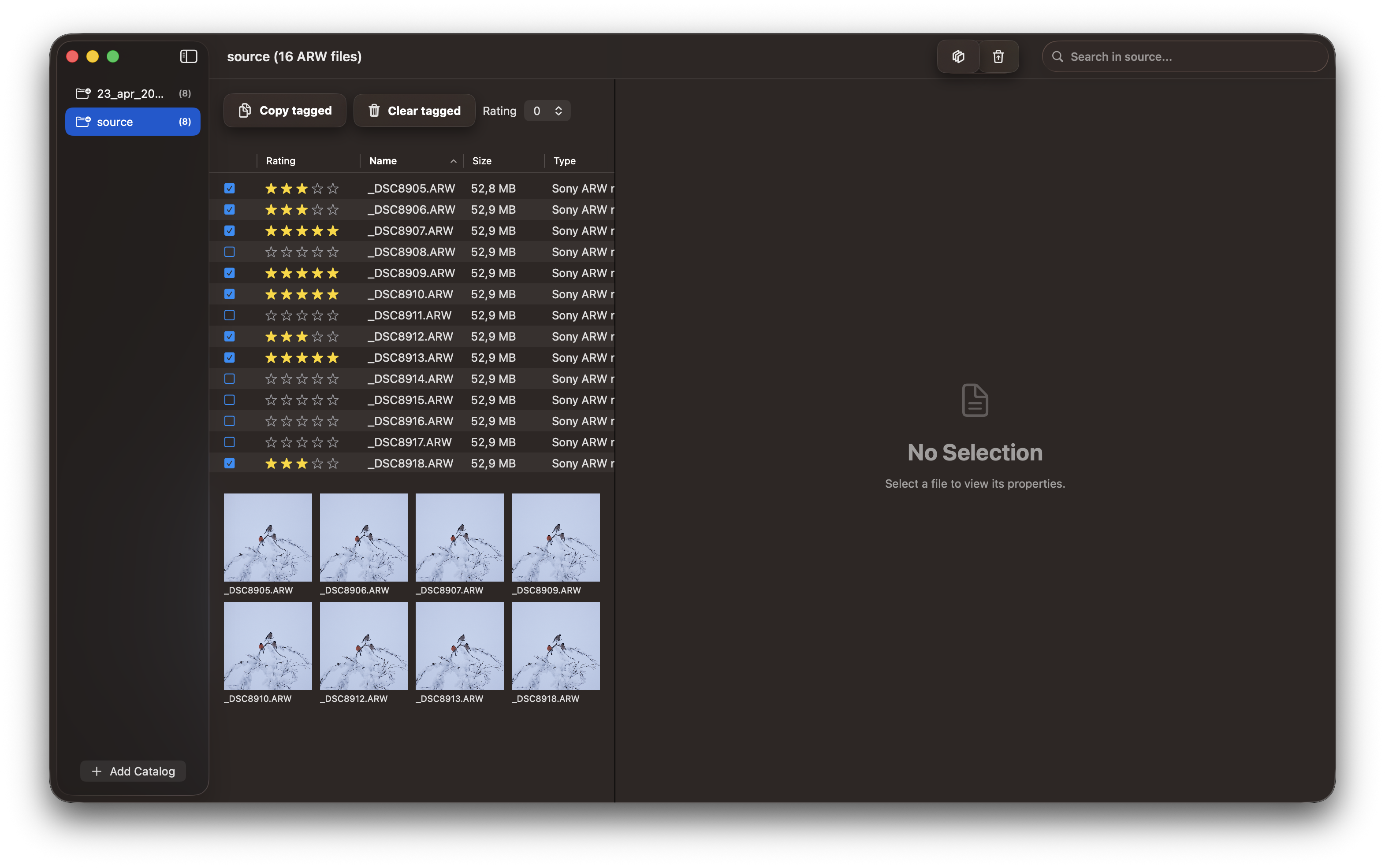
Step 2: Filter by Rating
Use PhotoCulling’s rating filter to display only photos that meet your minimum rating criteria for copying.
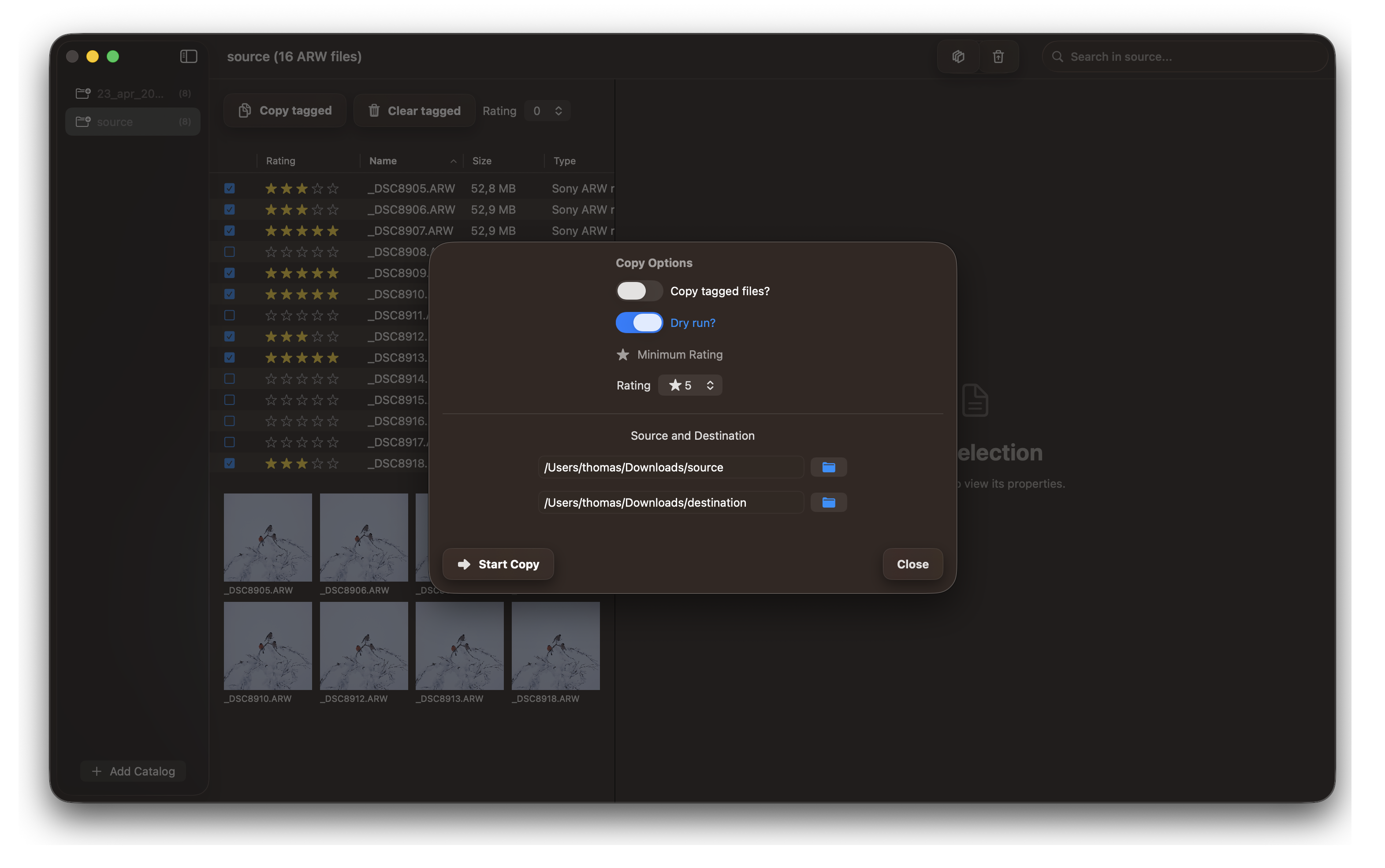
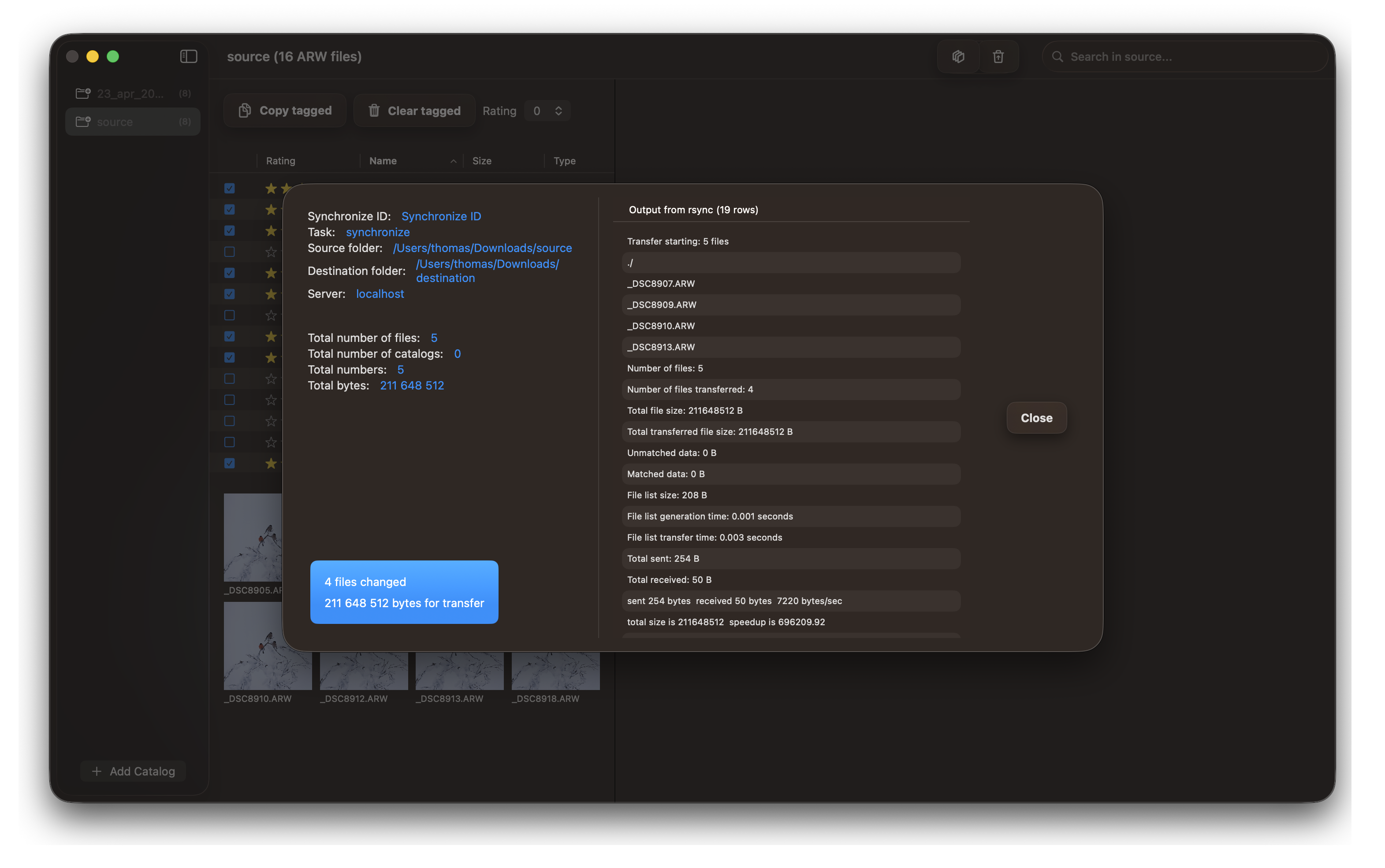
Step 3: Copy Rated Photos to Destination
Execute the copy operation to transfer only your highly-rated photos to your final destination folder.
Tips for Efficient Copying
- Tagged vs. Rating: Choose the copy method that best fits your workflow—tagged photos for broad selections or rating-based for quality-focused selections
- Use Separate Folders: Keep your temporary catalog separate from your final destination to avoid confusion
- Name Your Catalogs: Use descriptive names like “2026-02-01-Event-Tagged” or “2026-02-01-Event-Rated”
- Verify Completion: Always confirm that all images were successfully copied before deleting the source
- Backup First: Consider backing up your original camera files before the culling process begins
Now that you understand both copy workflows, you’re ready to cull your photos using PhotoCulling!